 Paysum
Email campaigns
Send emails to customers who opted in, and remind buyers who left checkout.
Send campaigns to customers who agreed to hear from you. Open Marketing → Email campaigns.
Set up sending
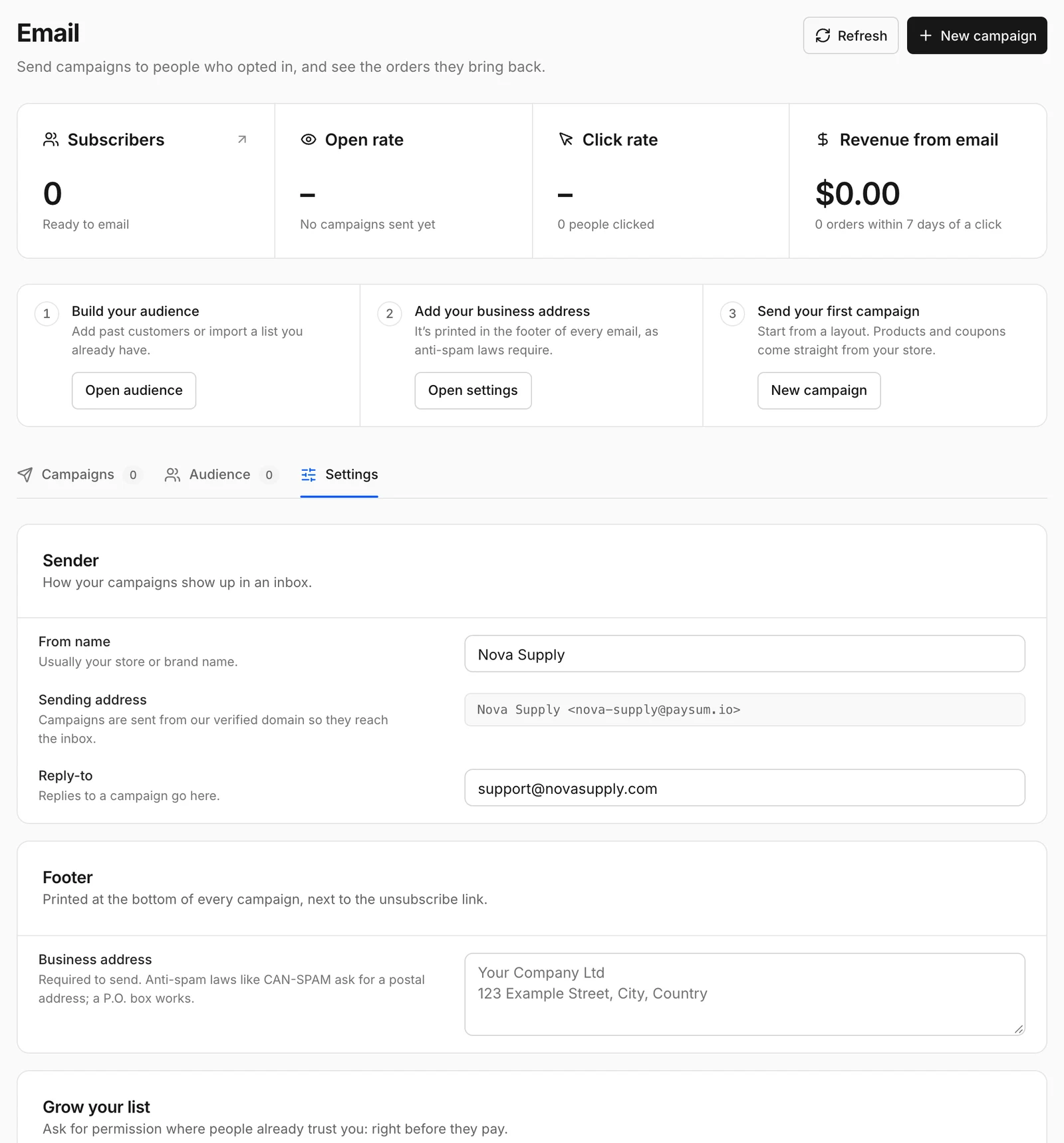
Open Marketing → Email settings first:
| Section | What to set |
|---|---|
| Sender | From name, Sending address and Reply-to. |
| Footer | Your Business address, printed next to the unsubscribe link. |
| Grow your list | Ask buyers for permission at checkout, right before they pay. |
| Abandoned cart emails | One reminder to buyers who started checkout but did not pay, an hour after they left. Premium. |
Build your audience
Marketing → Email audience lists your contacts and their consent. Add buyers who opted in, or import a list of contacts who gave you permission.
Send a campaign
- On Email campaigns, click New campaign.
- Enter a Name, for example
Spring drop, and choose a starting Layout. - Build the email with blocks: text, images, buttons and products from your store.
- Send a test to yourself.
- Send the campaign.
Each campaign shows its activity: opens, clicks and the revenue it brought in.
Rules
- Only email people who agreed to it. Paysum adds an unsubscribe link to every campaign.
- A real Business address in the footer is required by anti-spam laws in many countries.